
GoHighLevel(GHL) missed call text back helps you acknowledge callers when your team cannot answer. Instead of leaving someone wondering whether to try again, you can offer a simple way to continue the conversation by text.
Imagine a customer calling your business while everyone is helping other clients. A useful reply introduces your business, acknowledges the call, and asks what they need. Your team can then follow up with enough context to have a better conversation.
This guide covers setup, original message templates, repeat-call handling, and checks to make before relying on the automation.
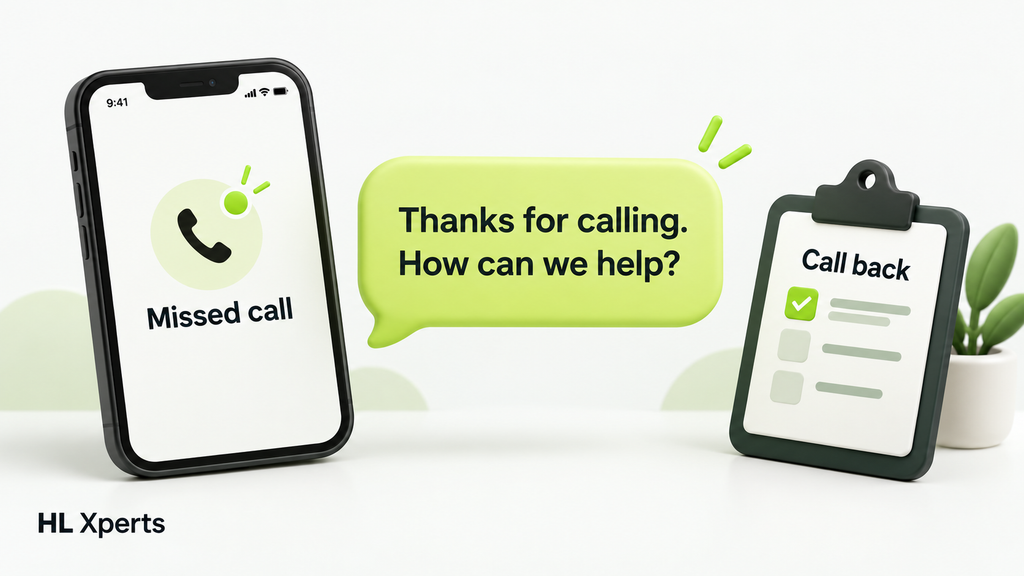
Table of Contents
What Is GoHighLevel Missed Call Text Back?
The built-in feature sends an automatic SMS after a missed inbound call. It offers callers another way to contact your business while your team is unavailable.
Think of the message as an acknowledgment. Someone still needs to read the reply and help the caller.
Before writing your message, decide:
- Who will monitor incoming replies?
- What should the caller do next?
- What response time can your team realistically promise?
- When should staff make a callback rather than continue by text?
A clear handoff matters as much as the first message.
Before You Set Up Missed Call Text Back
Choose the business line you want to test and nominate a team member to manage replies. Write down your normal opening hours and the next step you want callers to take.
Keep the first message focused on their call. A booking link may suit an appointment-based business, while a question such as “What service do you need?” may suit a business that must understand the request first.
Prepare an external mobile phone for testing. Keep a small record of the call time, number dialed, message received, and staff response. This makes it easier to compare expected behavior with what actually happened.
Avoid promising an immediate callback unless someone can consistently deliver it.
GoHighLevel Missed Call Text Back Setup: 7 Steps
1. Open the Correct Location
Select the business location you want to configure. Check the business name before changing anything.
2. Open Phone System Settings
Go to Settings → Phone System → Voice.
3. Find the Missed Call Controls
Open Voicemail & Missed Call Text Back, then select Missed Call Text Back.
4. Enable the Feature
Turn on Enable Missed Call Text Back.
5. Customize Your SMS
Select Customize and write your reply. Include your business name and one clear next step.
6. Send a Preview
Use Send test to check the wording on your phone.
7. Save and Check a Real Call
Select Save, then make an inbound test call and leave it unanswered.
For the official instructions, see HighLevel’s missed call text back setup guide.
GoHighLevel Missed Call Text Back Templates
Use these original templates as starting points. Replace the square-bracket placeholders before saving; they are editing instructions, not working merge fields.
General Business Reply
Thanks for calling [Business Name]. Sorry we missed you. What can we help you with? Reply here and our team will follow up.
This works well when the caller’s request could vary. It asks one easy question without sending them straight into a sales pitch.
After-Hours Reply
Thanks for calling [Business Name]. Our office is currently closed. We reopen at [time and timezone]. Please reply with what you need, and our team will follow up during business hours.
Use this only when the automation is configured to send the after-hours version at the appropriate times. Otherwise, choose wording that remains accurate throughout the day.
Appointment Booking Reply
Thanks for calling [Business Name]. Sorry we missed your call. You can choose an available appointment here: [booking link], or reply with a question.
Use a direct booking URL that works on mobile. Check that the calendar shows the service and staff availability you actually want callers to book.
For GoHighLevel missed call text back, a short, helpful message is usually easier to act on than several questions at once. Avoid requests for sensitive information in the initial reply.
Avoid Duplicate Missed Call Messages
The native feature sends a text for each missed call, including repeat callers. Do not assume it has a built-in cooldown.
For a more controlled GoHighLevel missed call text back setup, consider a custom workflow with tested repeat-call handling.
Decide the rule before building it. For example: “A caller should receive one acknowledgment during a 20-minute period.” Then test that rule with two calls close together and another call after the period ends.
If the workflow sends the customer-facing acknowledgment, switch off the native acknowledgment to avoid overlap. Also check older automations that might send a similar message.
Use one clearly documented process for this initial reply. Record who owns it so later account changes do not accidentally introduce duplicates.
When to Use a Missed Call Workflow
A workflow is useful when you need staff notifications, callback tasks, or more specific call filters alongside the SMS.
In Automation → Workflows, create a workflow and add the Call Details trigger. Set Call Direction to Incoming, then select the call statuses relevant to your process, such as busy or no-answer. Include voicemail only if that outcome should also qualify.
Add the SMS and any staff follow-up actions, then publish and test. Compare the actual call record with your filters rather than relying only on how the call sounded.
HighLevel documents these options in its Call Details trigger guide.
Review Re-Entry and Timing
For a call-triggered workflow, Allow Re-entry permits a contact to return after completing the workflow or being removed; it does not let them re-enter while still active.
A workflow Time Window can postpone communication actions. Stop on Response can remove a contact when they reply to that workflow’s message.
These settings affect a GoHighLevel missed call text back workflow, especially if you use active enrollment as part of a cooldown. Test early exits and later calls before relying on that design.
Read HighLevel’s workflow settings guide when choosing the behavior.
Test GoHighLevel Missed Call Text Back Before Launch
A preview checks your message copy. A real call helps you inspect the entire caller experience.
Use a test record like this:
| Test | What to check |
|---|---|
| One unanswered call | The intended acknowledgment arrives with readable wording. |
| A call answered by staff | No unnecessary missed-call acknowledgment is sent. |
| Two calls close together | Message frequency matches the process you selected. |
| A call after the cooldown | The custom workflow behaves as intended again. |
| A call outside opening hours | The wording and timing match your availability. |
| A reply to the SMS | The responsible team member can find and answer it. |
| A booking-link click | The correct calendar opens and accepts a test booking. |
Also ask a colleague to read the message without context. Can they identify the business and understand what to do next? That simple review often catches unclear wording before customers see it.
Troubleshooting GoHighLevel Missed Call Text Back
If a message does not arrive, separate the call-trigger question from the delivery question. An automation can start successfully while its SMS fails later.
Check the failed message in Conversations and record the exact error. Verify the recipient’s number, SMS capability, and opt-out or Do Not Disturb status. Check that the sender is SMS-capable and has any required messaging registration.
Use HighLevel’s SMS delivery troubleshooting guide to investigate the displayed error.
For workflow problems, check publication status, Enrollment History, Execution Logs, and whether the call matches every trigger filter.
You can also read our previous post, GoHighLevel Workflow Not Triggering? 8 Easy Checks.
The native feature may use another eligible SMS sender if the dialed number cannot send texts. Including your business name helps the caller recognize the reply.
Avoid repeatedly sending test messages without changing the suspected cause. Keep the relevant timestamps and error details so you can explain the issue clearly if you need support.
Frequently Asked Questions
Is GoHighLevel Missed Call Text Back Enough on Its Own?
It can handle the initial acknowledgment. Your business still needs a reliable process for reading replies, answering questions, and making callbacks.
Should I Add the Caller’s First Name?
New callers may not have a recognized name. A general greeting avoids that dependency.
Can I Use These Templates for Every Business?
Adapt the wording to the service, opening hours, and next step. Test the final text with someone who does not already know your business.
How Should I Measure Results?
Track replies, completed callbacks, bookings, and duplicate-message complaints. Compare those outcomes over time instead of treating the number of automated texts as proof of success.
Give Every Missed Caller a Clear Next Step
A useful GoHighLevel missed call text back process combines clear wording, sensible message frequency, and a team member who follows through.
Start with one helpful reply, test real calls, and review the conversations it creates. Add more automation only when you can explain how it improves the caller’s experience.
To track callers who become opportunities, read GoHighLevel Sales Pipeline: 7 Easy Setup Steps.
Need help configuring your missed-call follow-up? Visit HL Xperts to discuss your setup.