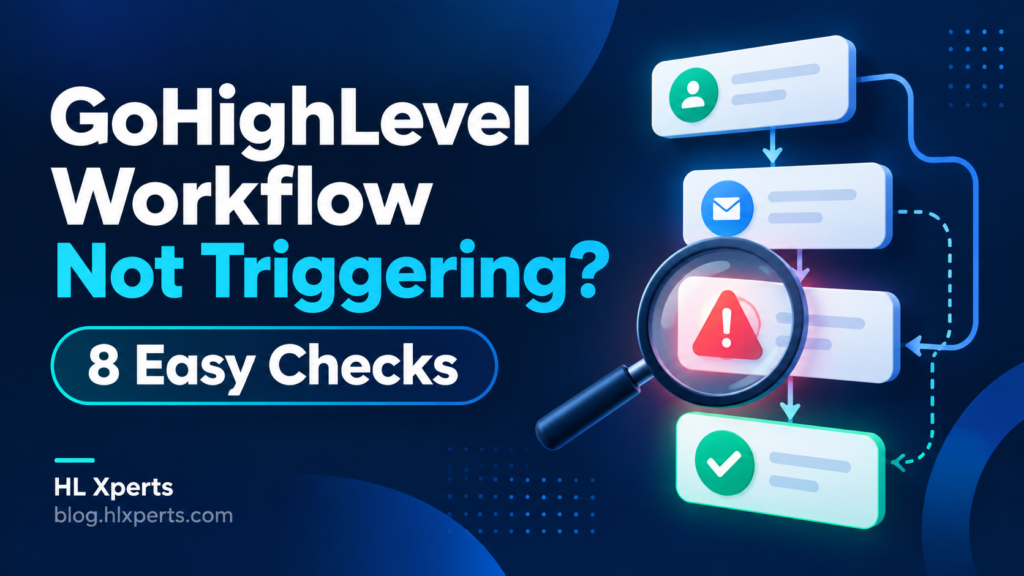
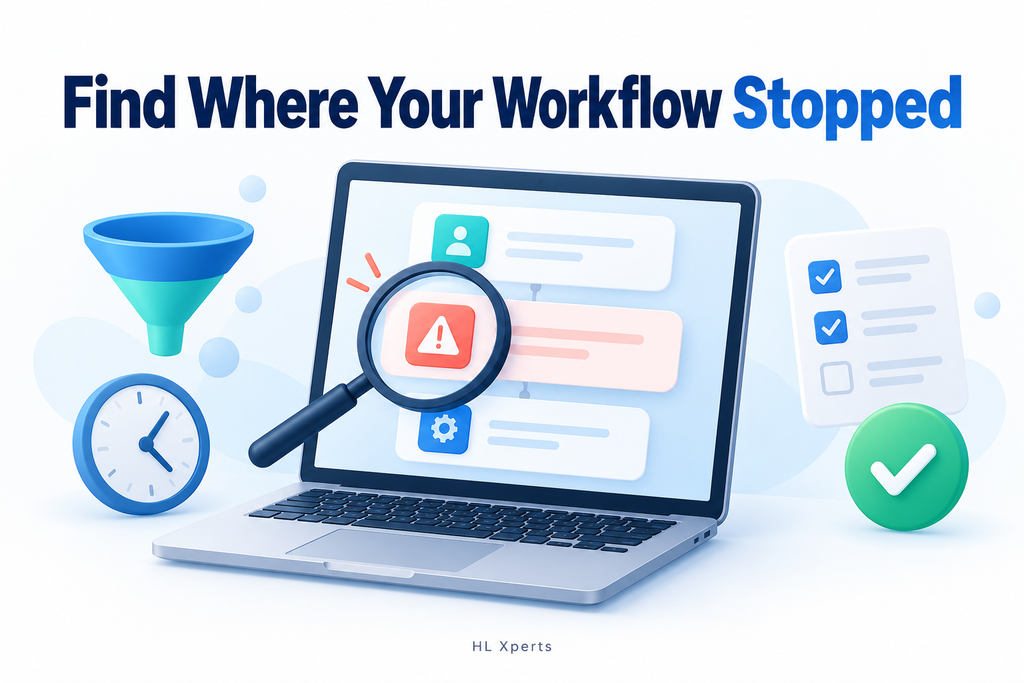
Is your GoHighLevel workflow not triggering even after a lead submits your form? When the follow-up never arrives, start by checking whether the contact entered the workflow. This guide explains how to review triggers, filters, enrollment history, and execution logs to find where the process stopped and test your fix.
Table of Contents
GoHighLevel Workflow Not Triggering? Start with Enrollment History
Open the correct sub-account, go to Automation → Workflows, and select the affected workflow. Check Enrollment History for your test contact and the relevant time period.
For a GoHighLevel workflow not triggering at all, start with publication status, the trigger event, its filters, and the contact’s eligibility for repeat entry.
If the contact entered, open Execution Logs and review their journey. Look for the first failed, skipped, or waiting action. HighLevel’s Highlight Contact Path feature can also show the route through the builder.
For more detail on tracing a contact’s journey, see HighLevel’s official Enrollment History and Execution Logs guide.
Use this as your starting checklist:
| What you find | What to investigate |
|---|---|
| No matching enrollment | Publication status, event, filters, and re-entry |
| Contact waiting at a step | Wait configuration and timing |
| Contact followed an unexpected branch | If/Else conditions and actual field values |
| Communication action skipped | Applicable DND restrictions and action details |
| Contact exited early | Removal actions and Stop on Response |
These are investigation paths, not proof of a particular cause.
1. Confirm the workflow is saved and published
Saving a workflow and publishing it are separate controls. A saved workflow can still be in Draft.
Open the builder and confirm that the workflow is published. Save any unsaved changes, and resolve required-field errors shown in the builder.
Then perform a new test event. For a form workflow, submit the actual form again using a test contact you control. This lets you check the current configuration against a clearly recorded event.
2. Check the event and the selected form
When investigating a GoHighLevel workflow not triggering, read the trigger as a sentence: “Start this workflow when this event happens.”
For a standard HighLevel form, check the Form Submitted trigger and its Form Is filter. Confirm that the selected form is the one visitors actually submit.
For example, imagine your workflow selects “Consultation Request,” but the landing page uses a separate form named “Consultation Request Copy.” The names look similar, yet the selected form does not match the submission.
Open the published page and check the form used there, rather than relying on its visible heading.
Also distinguish between an embedded HighLevel form on WordPress and a separate WordPress form plugin. The latter needs a supported connection that passes the appropriate event or data into HighLevel; it does not automatically behave like a native HighLevel form submission.
3. Review filters against the actual test data
A correctly selected trigger can still exclude the contact through its filters.
Write down each configured rule, then compare it with the event and contact data from your test. Where several rules must be satisfied, checking just one is not enough. HighLevel recommends reviewing every required trigger condition when enrollment fails.
For example, a workflow might target a particular form and require a specific custom-field answer. Confirm that your submission actually contains that answer in the expected field.
If Stats View is available, select the trigger and inspect its Attempted, Matched, and Unmatched results. Contact-level details can help explain why an evaluated contact did not match.
Make one change at a time so you can identify which correction resolved the problem.
4. Check whether the contact can enter again
If you notice your GoHighLevel workflow not triggering during repeat tests, check whether the contact is already active or has entered before.
Under Settings, review Allow Re-entry. For the usual contact-based behavior:
- When disabled, the contact can enter and complete the workflow only once.
- When enabled, the contact can enter again after completing the workflow or being removed.
- Enabling it does not create a second enrollment while that contact is still active.
HighLevel documents exceptions for appointment- and invoice-based triggers, which support entries for new appointments or invoices regardless of this setting.
Start with a fresh test contact to separate trigger problems from previous enrollment history. Enable repeat entry only when it fits the intended process.
5. For tag triggers, confirm the tag change happened
A Contact Tag trigger responds to a tag being added or removed. Check both the selected tag and the configured event.
HighLevel also notes that changes in the tag selector need to be confirmed—for example, by clicking Apply—before the tag update takes effect.
For a controlled test, use a fresh contact without the selected tag, apply the tag, and inspect enrollment.
Treat a contact already having a tag as a different situation from a new tag-added event. Before removing and reapplying tags on existing records, check what other automations those changes could start.
6. Inspect Wait steps and sending windows
If the contact enrolled but has not reached the expected action, inspect any earlier Wait steps.
A Wait action can pause progress for a duration, date, reply, appointment, or condition. Check exactly what ends the wait and whether a timeout or fallback is configured where supported.
For example, a step waiting for a reply will behave differently from one waiting for ten minutes.
Also check the workflow’s timezone and communication Time Window. These settings can delay messages even after enrollment; the communication window primarily affects email, SMS, and calls rather than internal actions such as adding tags.
One detail matters when testing fixes: editing a Wait action does not change the existing wait for contacts already in that step. Use a fresh test to verify the revised timing.
7. Follow the If/Else branch the contact actually took
A missing action may sit on a branch the contact never reached.
Open the relevant If/Else action and compare its field, operator, value, and AND/OR grouping with the test contact’s data. HighLevel uses the fallback “None” branch when no configured branch matches.
Suppose an illustrative workflow sends a priority notification only when the budget exceeds $5,000. A contact with an empty budget field does not demonstrate that the notification is broken; first check how the condition evaluated.
Trace the actual branch, then correct either the condition or the upstream data mapping as appropriate.
8. Separate message delivery from workflow enrollment
If the contact entered and reached a communication action, investigate that action’s result.
Check the recipient details and any available error information. Review the contact’s applicable Do Not Disturb (DND) settings: HighLevel skips communication steps that conflict with them. A contact can therefore continue through internal actions while a particular message is skipped.
Do not disable an opt-out simply to make a test pass. Use your own eligible test contact.
If the journey ended early, also review Stop on Response, which can end the workflow when the contact replies to a message sent by that workflow. Check the enrollment exit details for removal by another workflow.
Test the full process after making a fix
A successful builder test is useful, but it does not establish that the live event will enroll the contact correctly.
HighLevel recommends comparing test-mode behavior with a live event and using a fresh contact to rule out previous enrollment restrictions.
To troubleshoot a GoHighLevel workflow not triggering after a form submission, run this controlled test:
- Use a new test contact with your own email and phone details.
- Submit the form on the published page.
- Record the submission time.
- Check Enrollment History.
- Follow the execution through the expected actions.
- Verify the final result, such as the received message or created task.
If the issue persists, collect the workflow name, affected contact, approximate test time and timezone, screenshots, and relevant error details before contacting support.
Need help troubleshooting your GoHighLevel workflow?
Need help with a GoHighLevel workflow not triggering? Contact HL Xperts to review your triggers, filters, and contact journey.
For more automation ideas, read GoHighLevel Lead Assignment: 7 Easy Setup Steps.